Welcome 🤗! In the next ~4h we will cover:
Figure 1:Robot arm waving 👋🤖
Learning goals
send URScript program to a physical robot
program pick and place operations
use lists, tuples
use indexing with lists, tuples, and strings
differentiate between lists and tuples
Robot programming
Hello Robot
The goal is to control the robot using your laptop.
Switch the plug on the wall on.
Switch the robot on using the pendant.
Find an Ethernet cable that is connected to the switch under the workbench
Plug the cable to your computer. To plug it, you probably need a USB-Ethernet dongle, which you can get in the lab.
If there is a connection, you should see blinking lights on the Ethernet dongle, if the dongle has LEDs.
After the operating system PolyScope has booted, set the robot to Remote mode:
Clone the following repository:
Find the IP address of the robot, you will need it in the next step. You find them on the robots as shown in Image:
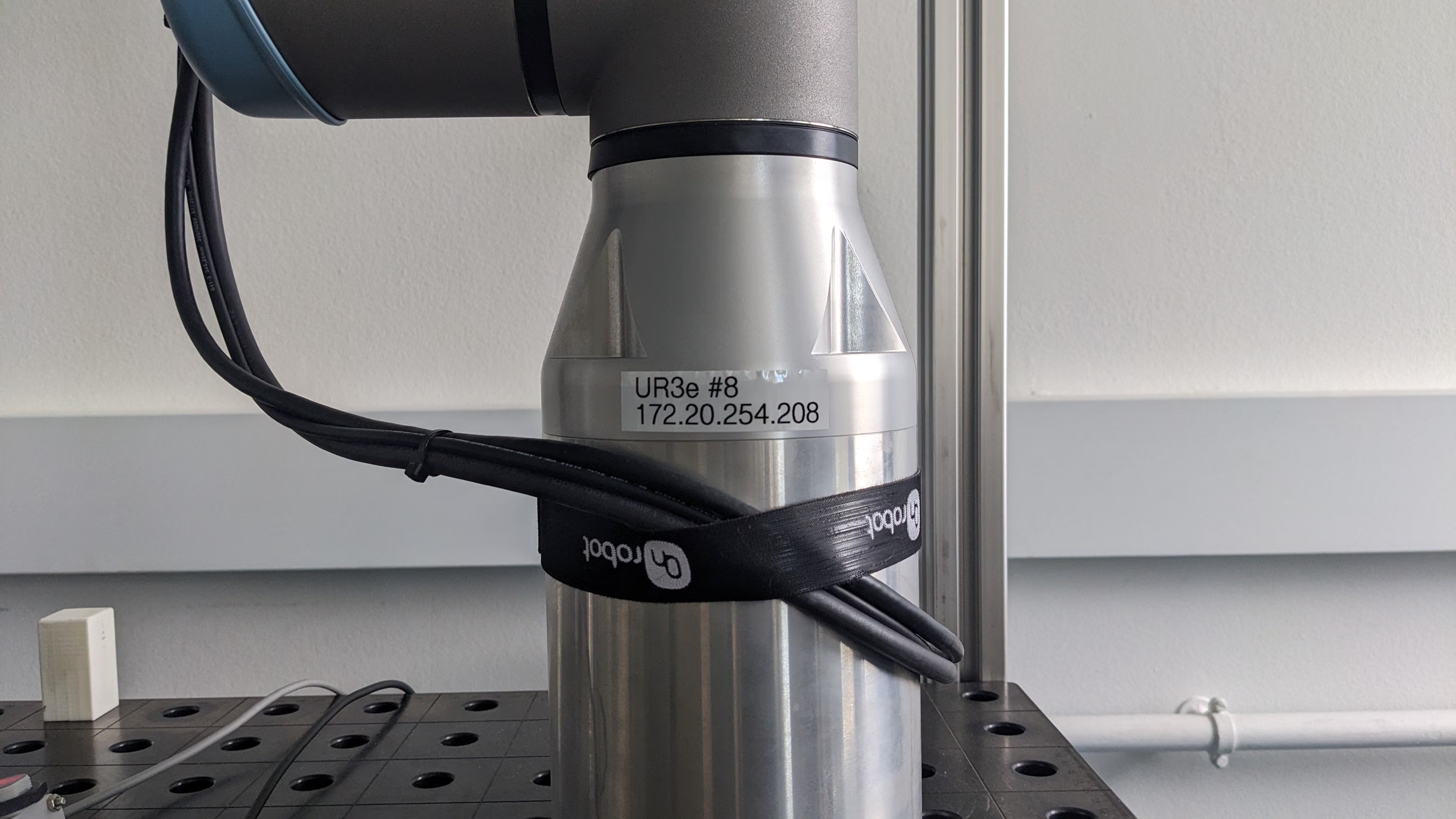
Open
src/main.pyand assignROBOT_ADDRESSthe IP address of the robot.You should see the robot move similar to Figure 1.
🛟 Troubleshooting
Robot does not move
Check the logs of your Python program in the terminal. For example, the robot may not be in remote mode.
The program is sent to the robot, but the robot does not move
Look at the pendant. The pendant may want you to confirm something. Then restart the Python program.
Your URScript may have syntax or functional errors. Check the logs on the pendant as follows for feedback, otherwise ask the chat for problems in your URScript.
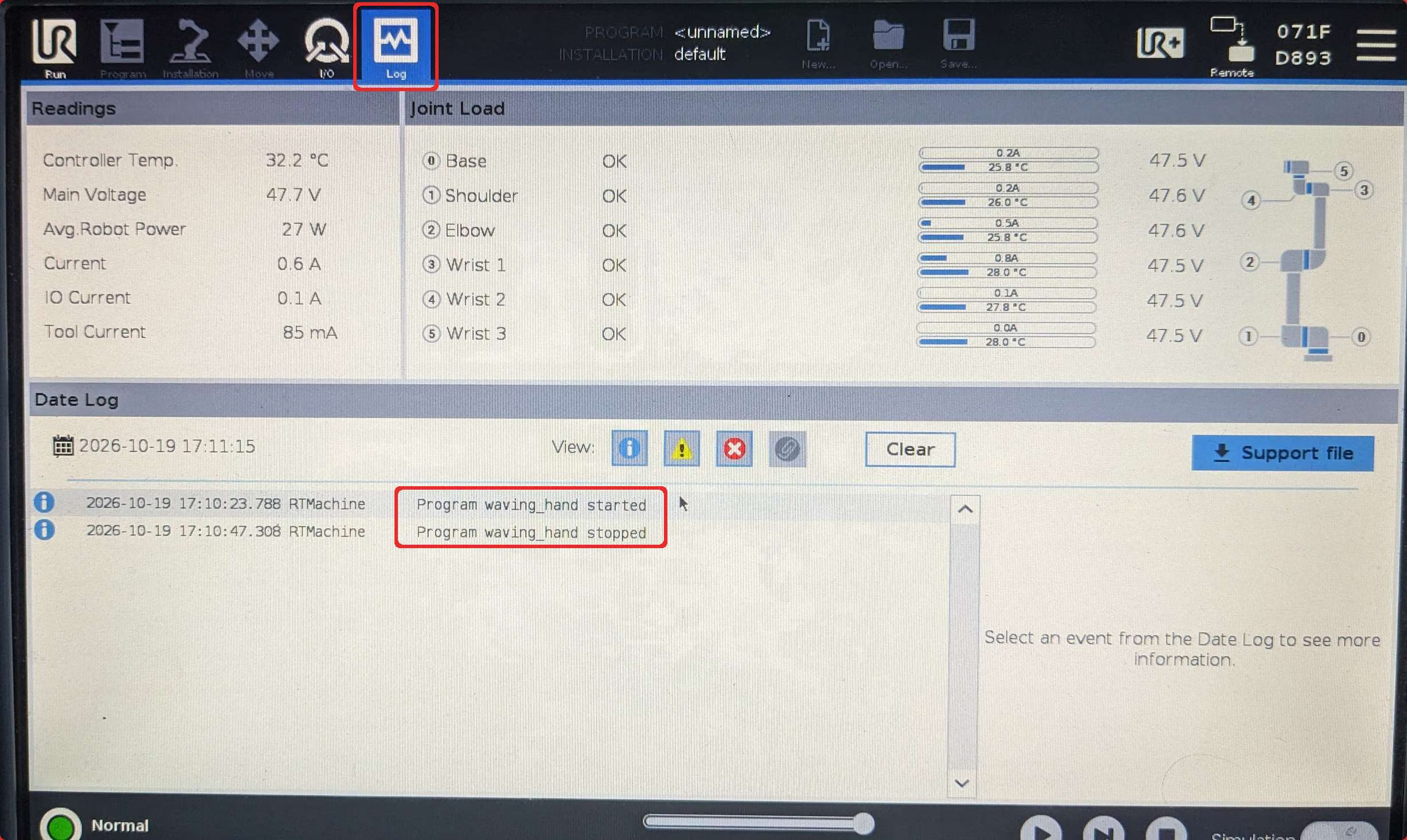
No connection or No route to host
Symptom
Your program outputs:
OSError: [Errno 113] No route to hostMeaning: Robot is not accessible
Solutions
Check the IP address for typing mistakes
Check your network dongle. Its LEDs should blink. The cables wear off easily and the contacts may not be reliable. Hold the cable still to test the cable’s reliability. If the dongle is old, it may have a loose connection.
Test whether you can reach (called ping) the robot on the network. Open a terminal in your editor and:
ping IP-ADDRESSIf you get messages as follows, then the robot is accessible by your terminal
64 bytes from IP-ADDRESS: icmp_seq=1 ttl=56 time=2.92 ms
64 bytes from IP-ADDRESS: icmp_seq=2 ttl=56 time=2.79 ms
...
If you don’t the the messages above, then open a command line terminal outside your editor and ping the robot here. If you get a connection in the terminal outside your editor, but not in the editor, then your operating system may have blocked your editor.
Internet access lost
After plug-in, your internet access may get lost, because the robot network is not connected to the internet but at the same time your computer tries to access internet through the robot network.
To fix this, we will modify your settings so that internet packets are sent through your WLAN, while the robot packets are still sent to the robot network.
System Settings → Network
Click three-dot menu at the bottom. It shows up if you have multiple interfaces
Click Set service order...
Drag Wi-Fi to the top, so that Wi-Fi is used to access the internet instead of the dongle.
Confirm settings and exit settings
start Command Prompt with administrator rights and use:
route delete 0.0.0.0 mask 0.0.0.0 172.20.254.254sudo ip route delete default via 172.20.254.254172.20.254.254is the gateway address for the robot network. You can find it by executingip routedefaultor0.0.0.0is the network destination for the packets.defaultstands for all packets which do not fit to the other entries in the routing table, which are typically internet packets.
alternatively: sudo ip route delete default will delete the last added default route, which should be the robot network route.
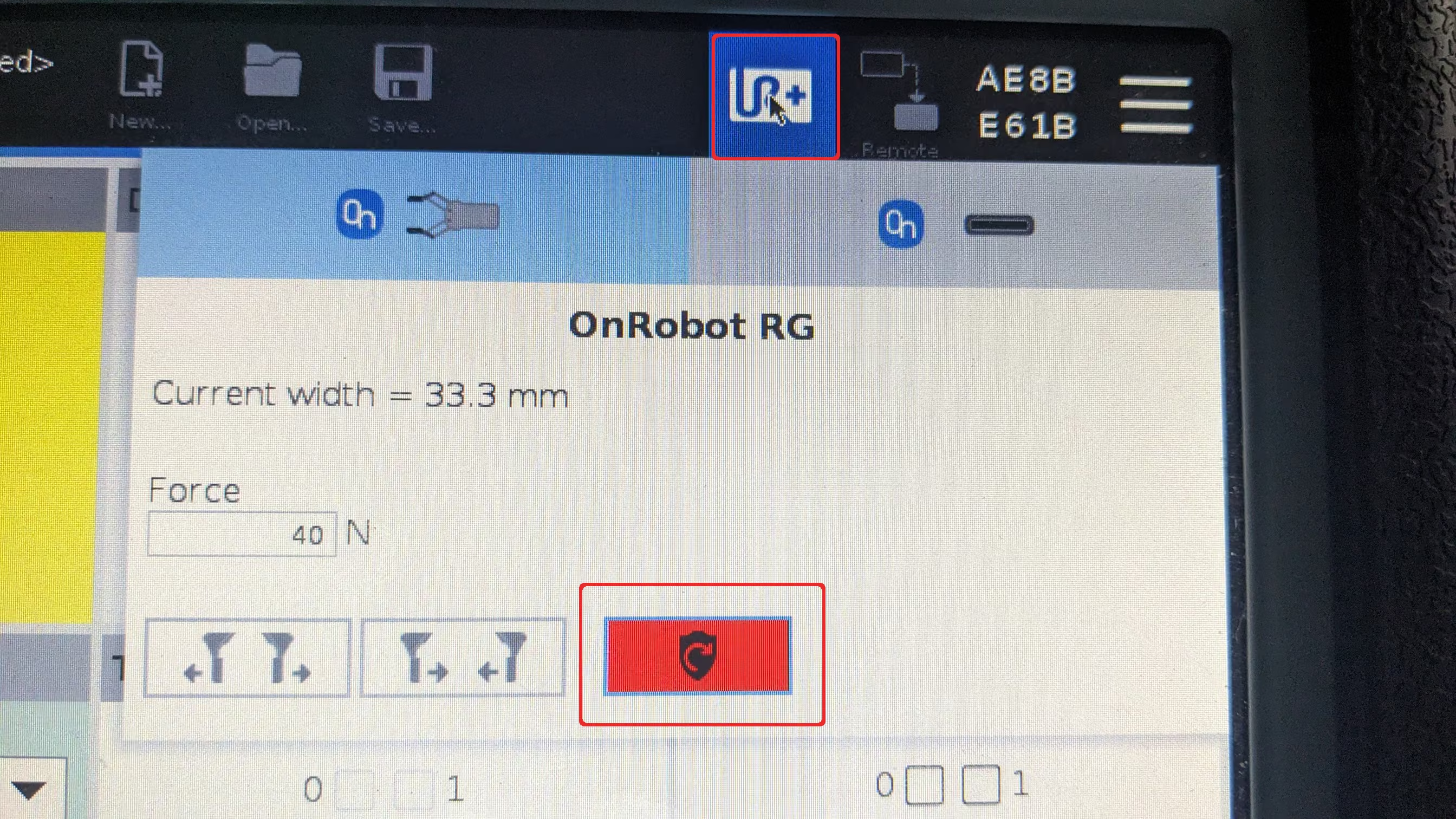
Gripper does not work
The gripper has an LED beside, which should be green 🟢. If the LED of the gripper is blinking red 🔴, reset it using the following button in PolyScope:
E: From one pipeline to another
Python Coding
Do you have any doubts about Div and Div? If not, take a look at these introductory questions from the book or start directly with the homework.
p.475, 7.1 Total sales
p.476, 7.7 Larger Than n
p.510 8.1
p.512 8.10