Python
(3-4h)
Lists and tuples
7.11
matplotliboptionalUntil p.475, not including Programming exercises.
Concepts:
7.1 Sequence (abstract data type)
listis mutable andtupleis immutable
7.2 Introduction to lists
Syntax:
l = [1, 'a', 42]Repetition operator:
l * 4[1, 'a', 42, 1, 'a', 42, 1, 'a', 42, 1, 'a', 42]Iteration:
numbers = [1, 2, 3]
for n in numbers:
  print(n)
1 2 3Indexing
numbers[0]1numbers[-1]3IndexErrornumbers[4]--------------------------------------------------------------------------- IndexError Traceback (most recent call last) Cell In[6], line 1 ----> 1 numbers[4] IndexError: list index out of rangelenlen(l)3Iteration by index
👎 not Pythonic but possible:
for index in range(len(l)):
  print(l[index])
1 a 42👍 Pythonic
for index, item in enumerate(l):
  print(index, item)
0 1 1 a 2 42Mutability
display(l)
l[0] = 3.14
l
[1, 'a', 42][3.14, 'a', 42]Concatenation
l + [4, 5][3.14, 'a', 42, 4, 5]l += [4, 5] l[3.14, 'a', 42, 4, 5]
7.3
listslicingdisplay(l) l[1:3][3.14, 'a', 42, 4, 5]['a', 42]l[1:]['a', 42, 4, 5]l[:3][3.14, 'a', 42]l[:-1][3.14, 'a', 42, 4]l[::2][3.14, 42, 5]
7.4 Finding items in lists using the
in42 in lTrueif 42 not in l: print("42 not inside")
7.5
listmethods and useful functionsappend,count(item),index(item),insert(index, item),remove(),reverse()l2 = [4, 7, 3] l2.sort() l2[3, 4, 7]del,sum,min,maxdel l2[2] l2[3, 4]
7.6 Copying lists
l2 = l  # does not copy
display(l)
display(l2)
l2[0] = None
display(l)
display(l2)
[3.14, 'a', 42, 4, 5][3.14, 'a', 42, 4, 5][None, 'a', 42, 4, 5][None, 'a', 42, 4, 5]l[0] = 3.14 l2 = l.copy() # copies (but shallow) display(l) display(l2) l2[0] = None display(l) display(l2)[3.14, 'a', 42, 4, 5][3.14, 'a', 42, 4, 5][3.14, 'a', 42, 4, 5][None, 'a', 42, 4, 5]
7.7 Processing lists
for totaling the values,
sum()betteraveraging:
statistics.mean()Passing a list as an argument to a function
You can modify the list - it is not copied
Returning
Randomly selecting
import random random.choice(l)4random.choices(l, k=2)[3.14, 3.14]Working with lists and files
l2 = ["1. line\n", "2. line"]
with open("file.txt", "w") as f:
  f.writelines(l2)
with open("file.txt") as f: l3 = f.readlines() l3['1. line\n', '2. line']
7.8 List comprehensions
display(l)
l = [item for item in l]  # same meaning
l
[3.14, 'a', 42, 4, 5][3.14, 'a', 42, 4, 5]display(l) l2 = [item * 2 for item in l] l2[3.14, 'a', 42, 4, 5][6.28, 'aa', 84, 8, 10]Using
ifdisplay(l) l2 = [item * 2 for item in l if type(item) is int] l2[3.14, 'a', 42, 4, 5][84, 8, 10]
7.9 two dimensional lists
building = [
  ["App1", "App2"],  # First floor
  ["App3", "App4"],  # Second floor
]
building
[['App1', 'App2'], ['App3', 'App4']]
7.10 Tuples
Why? (1) some Python features require it (2) a bit more efficient (not very important for you)
for defining constant sequences
t = (1, "hi")
t
(1, 'hi')supports all list operations, but modifying ones
7.11 Plotting list data with
matplotlibimport matplotlib.pyplot as plt xs = range(4) ys = [2, 1, 3, 0] plt.plot(xs, ys);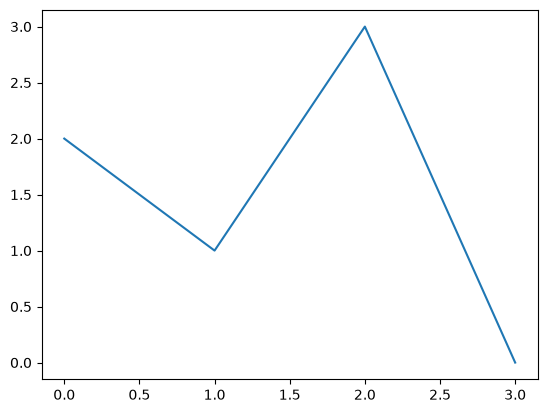
More about Strings
Until p.510, not including Programming exercises.
Concepts:
8.1 Basic String operations
Many sequence operations apply
s = "Hello"
for character in s:
  print(character)
H e l l olen+immutable
8.2 String slicing
same as sequences
8.3 Testing, searching, and manipulating strings
in,not inisalnum,isalpha,isdigit, ...lower,strip...searching and replacing:
find...s = "Gökçe Aydos" s.endswith("Aydos")Trues.replace("Aydos", "Su")'Gökçe Su's.split()['Gökçe', 'Aydos']
URScript
(2h)
In your project, you will use UR robot arms. There are two ways to program a these:
Using the PolyScope GUI on the pendant. You have tried this in first weeks.
URScript
PolyScope provides a more visual programming experience and the PolyScope on the robot pendants In this unit we will introduce URScript.
URScript is the programming language for controlling robots manufactured by the company Universal Robots.
Example:
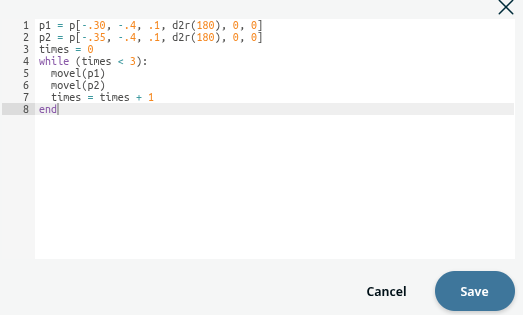
Code:
p1 = p[-.30, -.4, .1, d2r(180), 0, 0]
p2 = p[-.35, -.4, .1, d2r(180), 0, 0]
times = 0
while (times < 3):
  movel(p1)
  movel(p2)
  times = times + 1
end
Programmed robot:
Robot moves three times from the left point to the right and stops.
URScript’s syntax is similar to Python, but there are several differences, e.g.:
many builtin function in Python are not available.
functions end with
endyou cannot use
+=,-=, etcthere is a special datatype
pose, which is similar to a Pythonlist, but has apbefore:p[...]
Nevertheless, many operations are also very similar.
URScript syntax
You can take a look at URScript’s fundamental elements or come back here later for a reference:
UR Studio
In the class you will work with real robots. To warm up, we will use a simulator: The UR Studio. Let us run the example:
Go to https://
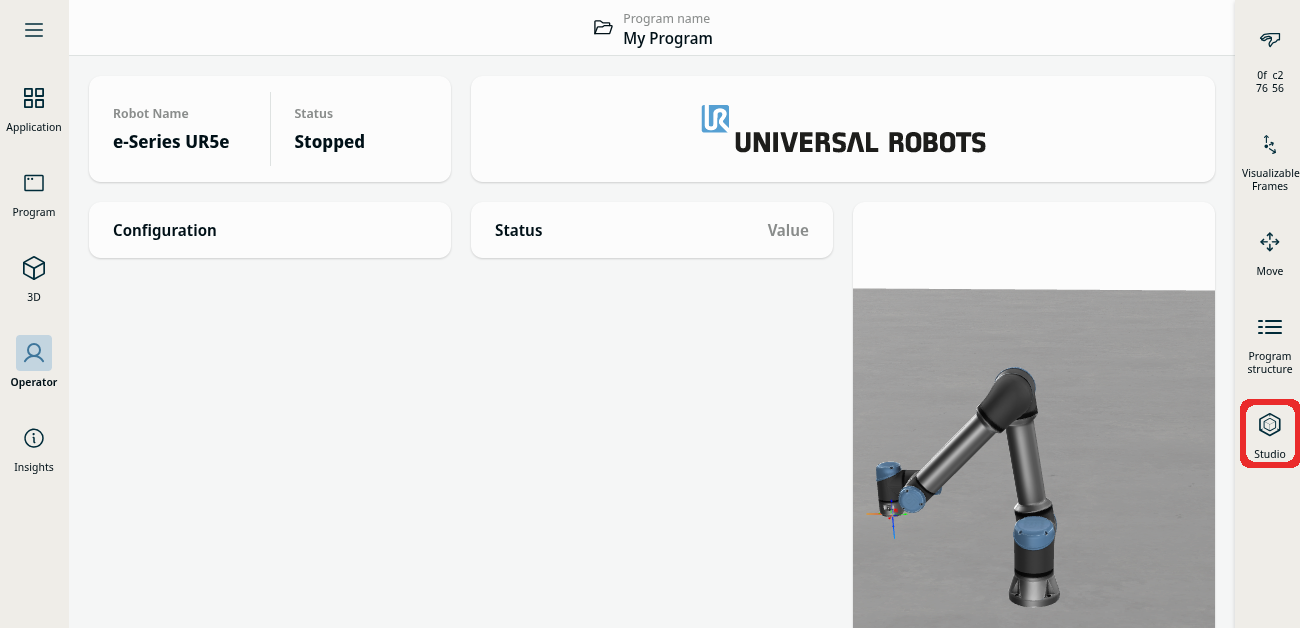
studio .universal -robots .com and login with your existing account that you created as part of RobotLab certification. Click Studio on the right bar:
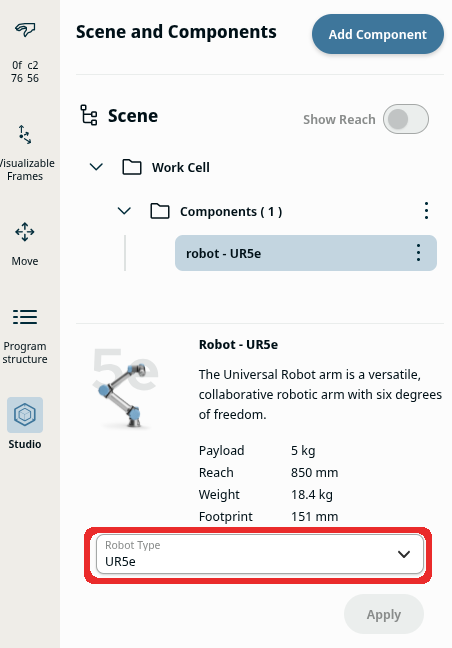
Change the Robot type to UR3e, and then click Apply.
The simulator will be restarted and you will be back in the welcome screen.
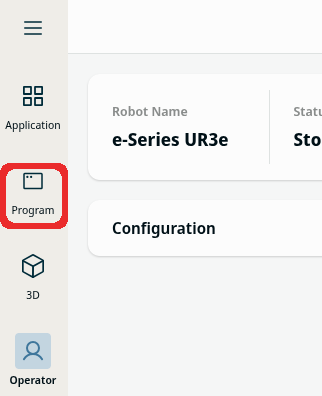
Now we will load our program. Click Program:
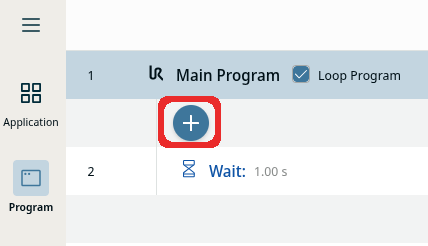
Then click the ➕ icon:
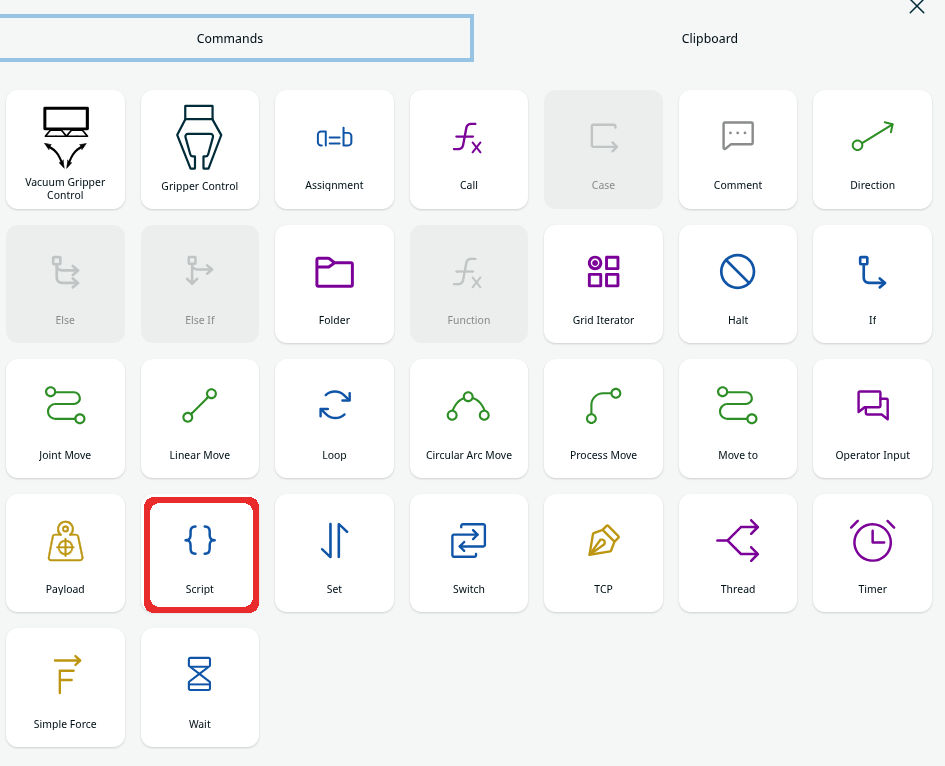
Click Script:
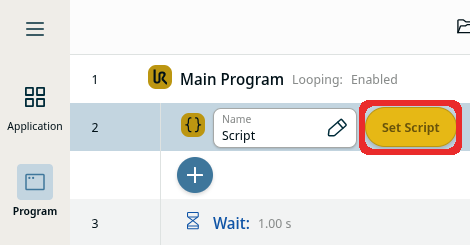
Click Set Script:
Copy Program 1 and paste it into the window, then click Save.
Click Robot State, then Power On, and Unlock.
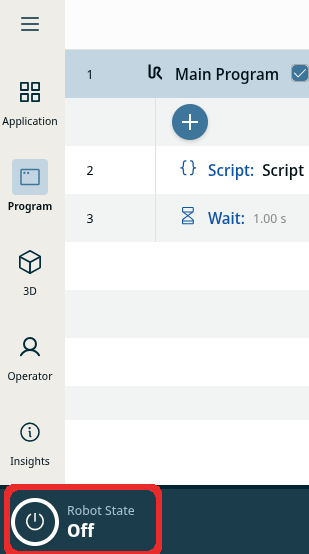
Close the robot state window by clicking somewhere else in the window.
Click 3D.
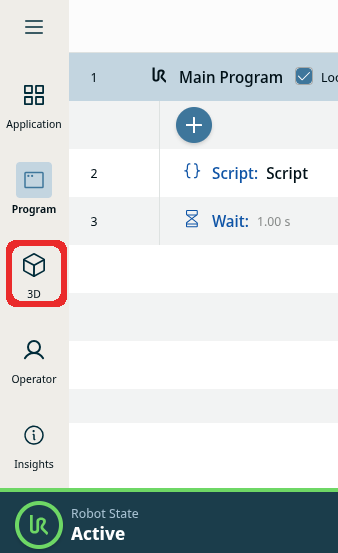
Click the play symbol. You should see the robot moving. It will restart the program, due to Looping: Enabled in the program settings we had in a previous step.
Motion function movej
One of the motion commands that you will probably work often is movej. movej gets a list of six numbers as a parameter:
movej([0, d2r(-90), 0, d2r(-90), 0, 0])[0, d2r(-90), 0, d2r(-90), 0, 0] is a list which is fed to the movej command. Each element in the list describes one joint position as shown in Figure 2.
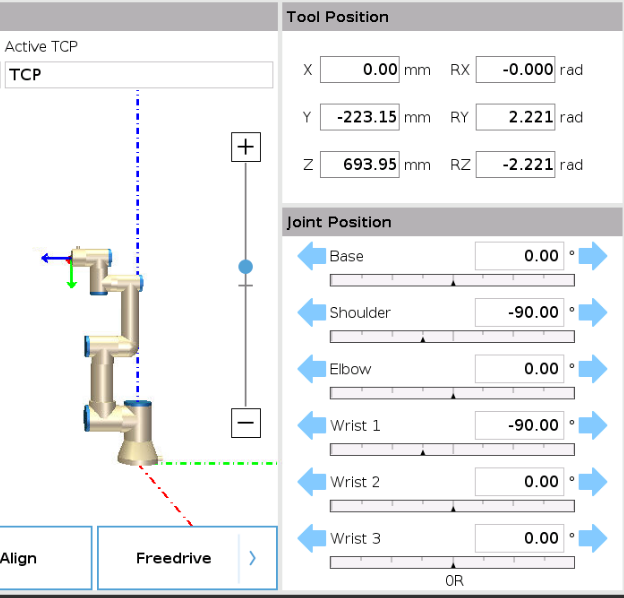
Figure 2:Robot tool pose (titled tool position) and joint rotations (titled joint position) on PolyScope 5.
On UR Studio, you can get joint data by clicking Move and then Joints. For example if all joint angles are zero, then you get the following robot pose:
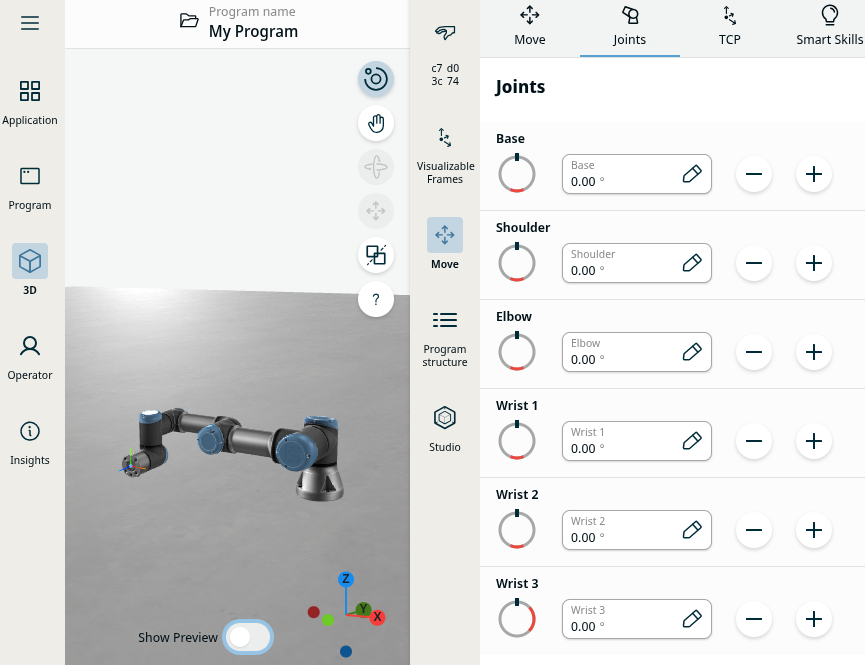
Figure 3:Robot tool pose (titled tool position) and joint rotations (titled joint position) on PolyScope X and UR Studio.
In the movej command we used d2r(). This function converts degrees to radian. movej works with radians and 0° corresponds to 0 radian. Degrees are probably more intuitive for and do not involve decimal points, therefore I used the d2r() instead of writing the angles in radian.
0°: base
-90°: shoulder
0°: elbow
-90°: wrist 1
0°: wrist 2
0°: wrist 3
You will still see angles in PolyScope in radian (for example tool position in Figure 2), so you should know what radian is to make sense of the numbers.
- radian
a unit of measuring angles (symbol: rad). Whole rotation is rad and a right angle (90°) is rad. Radian
URScript plugin for VSCodium
I recommend writing your URScript programs in VSCodium. Install ahernguo.urscript which provides syntax highlighting and formatting. The extension will be active, if you save your programs with .script extension, e.g., wave_hand.script.
Debugging URScript code in UR Studio
E: Waving robot arm
Coordinate frames
The position that we provide, e.g., x = 1, y = -3, ... will be coordinates of a specific coordinate frame. So we should understand what a coordinate frame is.
- coordinate frame
- defines the origin and x, y, z directions.
Coordinate frames are typically drawn using 🟥, 🟩, and 🟦 colors, which correspond to the x, y, z axes, respectively. Like we write RGB (red green blue; and not BRG for example) are x, y, z axes in the same order.
Our robot has two predefined frames:
BaseTool
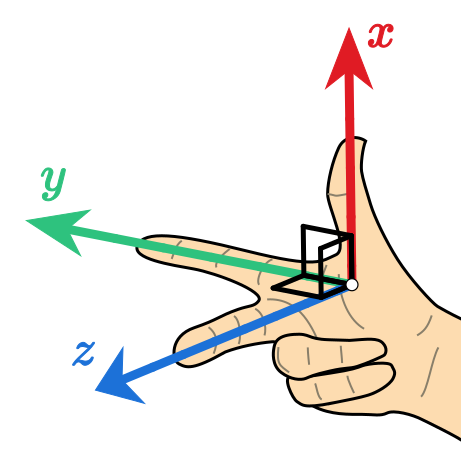
Figure 5:Right hand rule for a coordinate frame showing the relations between different axes.
acdx, Wikimedia Commons.
We will typically specify coordinates in Base coordinates. This coordinate frame is spanned by the 🟥, 🟩, and 🟦 dashed and dotted lines which intersect inside the base of the robot as shown in Figure 2 and Figure 3.
The Tool coordinate frame can be seen at the end of the head of the robot, where the tool is typically attached as shown in Figure 2. We see that the base coordinate frame is fixed (when Base is selected), but the pose of the tool coordinate frame changes with different joint positions.
The six joint positions lead to different poses of the tool coordinate frame and thus to different poses of the tool.
E: Finding a position in a coordinate frame
Pose
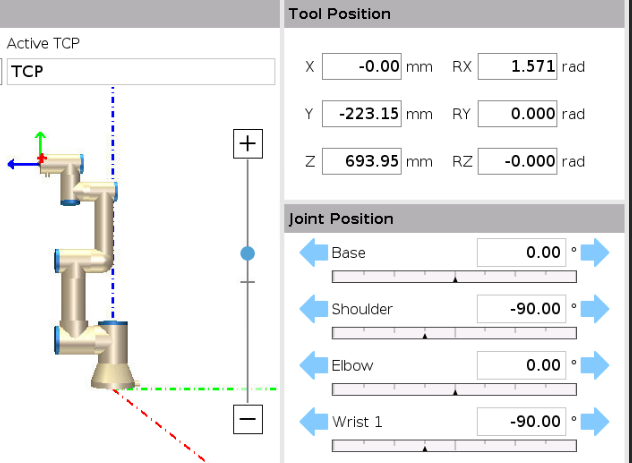
Figure 6:An example pose shown in Tool position. The tool frame is rotated +90 degrees around the x-axis compared to the robot’s base frame.
Not only the position, but in which direction something is facing is also important. For example even your head has typically a fixed position relative to the chair you are sitting on, it still does matter in which direction you are looking or speaking. You can rotate your head. We introduce pose which integrates both position and rotation.
For example the tool pose in Figure 6 corresponds to the following pose. (In UR Studio, you find it right to the Joints tab.).
p1 = p[0, -.22315, .69395, 1.571, 0, 0]Note the p in front of the bracket. This is a special list, which is reserved for a pose.

Figure 7:The fingers show the positive direction around an axis.
SVGguru Wikimedia Commons
The first three elements make up the position. These are given in meters, so we get:
0 cm in x direction
~22 cm in y direction
69 cm in z direction
The remaining three the rotation in radian.
90° rotation around the x axis, because
d2r(90) ~= 1.571.0° rotation around the y axis
0° rotation around the z axis
The direction is defined by the right hand rule in Figure 7.
E: Finding a feasible pose for the robot
E: Pick and place imitation
We meet in the classroom beside the Robotlab
See you 👋🙂