Welcome 🤗! In the next ~4h we will cover:
Figure 1:Example GUI
Motivation
Inheritance allows reuse of functionality
We interact with digital systems typically using GUIs
Learning goals
use inheritance
draw a wireframe
create GUI using Tkinter
Use grid to organize GUI elements
Bind strings and integers to GUI elements
Use
Treeviewto view list data on a GUI
Inheritance
Preparation review
Question pool
What does
HardItem(Item)do in the following?class Item: def __init__(self, id: str, price_per_unit: Decimal): self.id = id self.price_per_unit = price_per_unit def __str__(self) -> str: return f"{self.id} ({self.price_per_unit} per unit)" class HardItem(Item): def __init__(self, id: str, price_per_unit: Decimal, unit_weight: Decimal): super().__init__(id, price_per_unit) self.unit_weight = unit_weight def __str__(self) -> str: return super().__str__() + f" {self.unit_weight} kg per unit"Where do we see polymorphism in the code above?
Give examples of classes and inheritance in the domain of transportation, e.g., cars. Include variables and methods (functions).
Coding
p. 656 11.1
GUI
We will use Tk. For example Python’s idle is based on Tk.
Basic Template
Run the code below[1]
Which code lines are active when you click Calculate?
from tkinter import *
from tkinter import ttk

INCH_TO_METER = 0.0254


def calculate(*_):
    try:
        value = float(inch.get())
        meter.set(round(INCH_TO_METER * value, 4))
    except ValueError:
        pass


root = Tk()
root.title("Feet to Meters")

mf = ttk.Frame(root)  # main frame
mf.grid()

## Row 1
inch = StringVar()
inch_entry = ttk.Entry(mf, textvariable=inch)
inch_entry.grid(row=1, column=2)
ttk.Label(mf, text="inch").grid(row=1, column=3)

## Row 2
ttk.Label(mf, text="is equivalent to").grid(row=2, column=1)
meter = DoubleVar()
ttk.Label(mf, textvariable=meter).grid(row=2, column=2)

ttk.Label(mf, text="meter").grid(row=2, column=3)

## Row 3
ttk.Button(mf, text="Calculate", command=calculate).grid(row=3, column=3)

for child in mf.winfo_children():
    child.grid_configure(padx=5, pady=5)

inch_entry.focus()
root.bind("<Return>", calculate)

root.mainloop()
E: Hello GUI
Create a GUI with a label Hello World!
add a button below. If the button is clicked, then the text should be changed to Bye World!
add a frame around the label and button
E: DKK to EUR Converter
Write a GUI that converts DKK to EUR.
Wireframe
- wireframe
screen blueprint. A visual guide that represents the graphical user interface. Website wireframe
draw.io includes wireframe shapes. Click + More Shapes and activate
Mockup
E: Wireframe
Draw a wireframe for an interface that sends programs to a robot similar to what you have used in Exercise 1.
Widgets
- graphical widget
in GUIs: an element of interaction, such as a button or text field. Graphical widget
Tk widgets:
E: Widgets
Browse a look at the widgets: Which widgets could be useful for your robot control app?
Treeview
Useful for displaying a list of items https://
Example:
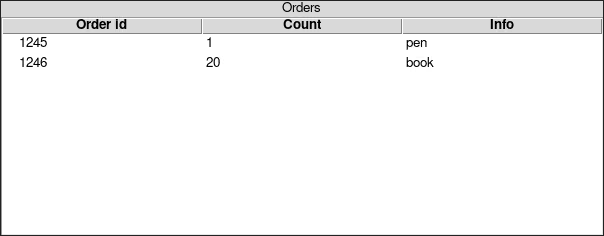
import tkinter as tk
from tkinter import ttk


class OrdersWindow:
    def __init__(self, orders: dict[int, tuple[int, str]]):
        self.root = tk.Tk()
        # Creates the main window.
        self.root.title("Orders")
        self.orders = orders
        self.setup_appearance()
        self.refresh_view()

    def setup_appearance(self):
        mf = ttk.Frame(self.root)
        # We typically begin with a main frame that is attached to the main window `root`

        mf.grid()
        # Attaches the main frame to the grid and row=0, column=0.
        # Grids help us to organize visual elements.

        ttk.Label(mf, text="Orders").grid()
        # A label with a text.
        # Is not assigned to a variable, because we are not going to change it again.
        # This element is attached to the grid and next elements will be too.

        ov = self.orders_view = ttk.Treeview(mf, columns=("count", "info"))
        # Creates a table with three columns with identifiers:
        # `#0`, `count`, and `info`
        # First column always exists and is called `#0`
        # I have used `ov` to shorten the next code.
        # This table is a `view` to the data in `orders`.

        ov.grid()

        ov.heading("#0", text="Order id")
        ov.heading("count", text="Count")
        ov.heading("info", text="Info")
        # Sets text in the headers of the columns.

    def refresh_view(self):
        table_rows = self.orders_view.get_children()
        self.orders_view.delete(*table_rows)
        # Deletes the table content before we read rows again.
        # `orders_view` does not know if `orders` changes. We have to refresh the data.

        for order_id, (count, info) in self.orders.items():
            self.orders_view.insert("", "end", text=str(order_id), values=(count, info))
            # Inserts a row. Arguments:
            # 1. `""`: We insert at the root of the table, i.e., not to another row.
            # 2. `"end"`: We insert as the last row.
            # 3. `text=id`: The data in the first column.
            # 4. `values=(...)`: The data in the rest of the columns.
            #
            # Note about 1.: Instead of inserting at the root, we can also insert to
            # existing elements to create a foldable list.

    def run(self):
        self.root.mainloop()
        # Runs until the window is closed.


orders = {1245: (1, "pen"), 1246: (20, "book")}
OrdersWindow(orders).run()