Databases
Learning goals
explain the motivation for using a database, e.g., compared to using a simple text file.
use SQLite to create a database, and implement create, read, update, and delete operations
Reading
Read through p.848, stopping before the
Programming Exercises.
Database
Our app speaks to a database management system (DBMS) using SQL to store data on a database. We will use SQLite, which is one of the most popular DBMS[1].
SQLite installation
MacOS has probably SQLite installed, however I recommend updating to the latest version:
brew install sqlitewinget install --id sqlite.sqliteConnection and operation
import sqlite3

con = sqlite3.connect("orders.db", autocommit=True)

con.execute("CREATE TABLE orders(id, item)")
# Executes an SQL.

data = [(294, "pen"), (295, "book")]

con.executemany("INSERT INTO orders VALUES(?, ?)", data)
# A single SQL is used for many data, therefore `...many`

for row in con.execute("SELECT * FROM orders"):
  print(row)

con.close()
(294, 'pen')
(295, 'book')
SQLite viewer
Useful for viewing database contents.[4]
codium --install-extension qwtel.sqlite-viewer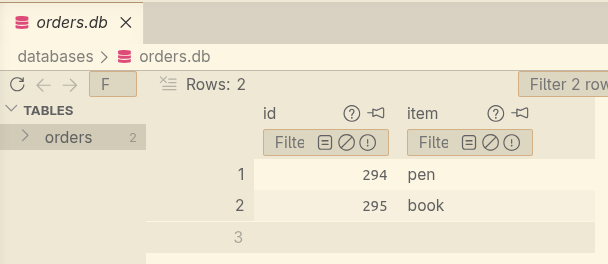
orders.db opened with the editor extension. We see the two rows we inserted.
Working on a temporary database
con = sqlite3.connect(":memory:") Creates a temporary database (instead of a permanent file). Useful for exercises, and will be used for the following cells.
I am not going to use the example database from Notebook-code again and use the temporary one instead.
import os
os.remove("orders.db")Creating a table
CREATE TABLE orders(id, item)We should also declare datatypes of the columns, because:
the same reason for datatypes in programming languages applies also here: operations have different meanings or are not defined at all on particular datatypes, e.g.,
10 + 1 = 11,"10" + "1" = "11".
When we provide datatypes, then SQLite tries to convert our input to the particular column’s datatype.[5]
We create the table using database schema.
Datatypes
https://
Python | SQLite |
|---|---|
|
|
|
|
|
|
|
|
|
|
Creating a table with datatypes
CREATE TABLE orders(id INTEGER, item TEXT)1 2 3 4 5 6 7 8 9 10 11 12 13 14 15 16 17con = sqlite3.connect(":memory:") con.execute("CREATE TABLE orders(id INTEGER, item TEXT)") data = [(294, "pen"), (295, "book")] con.executemany("INSERT INTO orders VALUES(?, ?)", data) print("# After First insert") for row in con.execute("SELECT * FROM orders"): print(row) print() data = [("296", "orange"), ("297", "apple")] con.executemany("INSERT INTO orders VALUES(?, ?)", data) print("# After second insert") for row in con.execute("SELECT * FROM orders"): print(row) con.close()
# After First insert
(294, 'pen')
(295, 'book')
# After second insert
(294, 'pen')
(295, 'book')
(296, 'orange')
(297, 'apple')
Even we provided a string, SQLite converted it to an integer
1 2 3 4 5 6 7 8 9 10 11 12 13 14 15 16 17con = sqlite3.connect(":memory:") con.execute("CREATE TABLE orders(id, item TEXT)") data = [(294, "pen"), (295, "book")] con.executemany("INSERT INTO orders VALUES(?, ?)", data) print("# After first insert") for row in con.execute("SELECT * FROM orders"): print(row) print() data = [("296", "orange"), ("297", "apple")] con.executemany("INSERT INTO orders VALUES(?, ?)", data) print("# After second insert") for row in con.execute("SELECT * FROM orders"): print(row) con.close()
# After first insert
(294, 'pen')
(295, 'book')

# After second insert
(294, 'pen')
(295, 'book')
('296', 'orange')
('297', 'apple')
Without explicit datatype, string gets stored as is.
Constraint: PRIMARY KEY
We usually want to address the data with a unique identifier, like F13 on a spreadsheet. Therefore we should pick a primary key upon creating a new table. This helps us later to relate to our data from other tables.[6]
CREATE TABLE orders(id INTEGER PRIMARY KEY, item TEXT)An integer primary key has an implicit UNIQUE constraint and NOT NULL constraint.[7]
Other constraints
UNIQUEInserting the same data will fail.
NOT NULLcolumn cannot be empty
Details: https://
Connection for the following cells
I will use this connection for the rest of the cells:
con = sqlite3.connect(":memory:", autocommit=True)Long SQL statements
Python’s triple-quoted strings are useful for readability:
con.execute("""
CREATE TABLE orders(
    id INTEGER PRIMARY KEY,
    item TEXT
    )
""");
Other table statements
CREATE TABLE IF NOT EXISTS ...DROP TABLE nameDROP TABLE IF EXISTS name
CRUD operations
INSERT INTO table VALUES (...)Refer to Notebook-code
We should use
?placeholders to avoid SQL injection[8]
SELECT columns FROM table WHERE criteriaLIKEoperator, e.g.,WHERE id LIKE "%pen%"ORDER BY
Aggregation
SELECT AVG(price) FROM tableSUMMINMAXCOUNT(*)
UPDATE table
SET column = value
WHERE criteria
DELETE FROM table WHERE ...
Getting affected row count
Insert example data:
con.executemany("INSERT INTO orders VALUES (?, ?)", data)
print("# After insert")
for row in con.execute("SELECT * FROM orders"):
  print(row)
# After insert
(296, 'orange')
(297, 'apple')
Delete and get affected row count:
cur = con.execute("DELETE FROM orders WHERE item LIKE '%app%'")
cur.rowcount1Useful to know whether our statement changed anything.
Composite keys
Sometimes we cannot find a primary key based on a single column. Imagine you have a database of residents in a single-person apartment building:
Table 2:Table residents
building | floor | room | name |
|---|---|---|---|
R | 1 | 9 | “Donald” |
R | 2 | 19 | “Cindy” |
A unique key would be the composite of all the three columns that represent a unique apartment.
CREATE TABLE residents(
  building TEXT NOT NULL,
  floor INTEGER NOT NULL,
  room INTEGER NOT NULL,
  name TEXT, -- a room can be empty
  PRIMARY KEY (building, floor, room)
)
Composite keys can lead to long SQL statements in table relations.[9] For simplicity, I will try to avoid them in next examples.
Relational data
SQLite is a relational database. It allows us to join information to other information. For example, we can define visitors in relation to residents:
```{list-table} Table employees
:header-rows: 1
id
site
floor
desk
name
1
HQ
3
12
Bernd Lopez
2
Riverside
1
4
Dilek Chen
3
HQ
2
7
Priya Patel
```{list-table} Table appointments
:header-rows: 1
id
time
client
employee_id
1
2026-07-30 16:45:43
Novo
1
2
2026-07-29 09:15:00
Volkswagen
2
3
2026-07-30 11:30:00
Siemens
3
The table schemas can be created as follows:
con.execute("""CREATE TABLE employees(
  id INTEGER PRIMARY KEY,
  building TEXT,
  floor INTEGER,
  desk INTEGER,
  name TEXT
)""")

con.execute("""CREATE TABLE appointments(
  id INTEGER PRIMARY KEY,
  time TEXT NOT NULL,
  client TEXT NOT NULL,
  employee_id INTEGER NOT NULL REFERENCES employees(id)
)""")

employees = [
    (1, "HQ", 3, 12, "Bernd Lopez"),
    (2, "Riverside", 1, 4, "Dilek Chen"),
    (3, "HQ", 2, 7, "Priya Patel"),
]

appointments = [
    (1, "2026-07-30 16:45:43", "Novo", 1),
    (2, "2026-07-29 09:15:00", "Volkswagen", 2),
    (3, "2026-07-30 11:30:00", "Siemens", 3),
]

con.executemany("INSERT INTO employees VALUES (?, ?, ?, ?, ?)", employees)
con.executemany("INSERT INTO appointments VALUES (?, ?, ?, ?)", appointments);
employee_id is a foreign key.
appointments table does not contain the names:
for row in con.execute("SELECT * FROM appointments"):
    print(row)
(1, '2026-07-30 16:45:43', 'Novo', 1)
(2, '2026-07-29 09:15:00', 'Volkswagen', 2)
(3, '2026-07-30 11:30:00', 'Siemens', 3)
If we relate to employees by joining two tables, we can append the necessary info to each row
cur = con.execute("""
SELECT *
FROM appointments
JOIN employees ON appointments.employee_id = employees.id
""")
for row in cur:
    print(row)
(1, '2026-07-30 16:45:43', 'Novo', 1, 1, 'HQ', 3, 12, 'Bernd Lopez')
(2, '2026-07-29 09:15:00', 'Volkswagen', 2, 2, 'Riverside', 1, 4, 'Dilek Chen')
(3, '2026-07-30 11:30:00', 'Siemens', 3, 3, 'HQ', 2, 7, 'Priya Patel')
Foreign key integrity enforcement
If we add a row with a foreign key that does not exist, then SQLite does not warn us[10]:
In the following cell employee id 99 does not exist:
con.execute(
    """
INSERT INTO appointments
VALUES (?, ?, ?, ?)
""",
    (4, "2026-07-30 11:30:00", "Siemens", 99),
);
Activating the following option is recommended:
con.execute("PRAGMA foreign_keys = ON");So that SQLite warns us:
con.execute(
    """
INSERT INTO appointments
VALUES (?, ?, ?, ?)
""",
    (5, "2026-07-30 11:30:00", "Siemens", 100),
);
---------------------------------------------------------------------------
IntegrityError Traceback (most recent call last)
Cell In[14], line 1
----> 1 con.execute(
2 """
3 INSERT INTO appointments
4 VALUES (?, ?, ?, ?)
IntegrityError: FOREIGN KEY constraint failedEntity relationship diagram
This entity relationship diagram uses Crow’s foot notation:
dash and dash on employee’s side means minimum one, maximum one.
Ring and crow’s foot means minimum zero, maximum many.
=> An employee can have 0 or many appointments. An appointment is related to only one employee.
Python in Excel
Data in some companies are kept on spreadsheets and so they become like databases. Excel supports running Python code in Excel.
Requirements
Python in Excel requires internet access and Excel license. As a student you have a license through our university.
You have to use https://
Internet access is required, because Excel runs in the cloud.
Tutorial
https://
Get started
Enter into a cell:
=py(It will be converted to a Python cell. Then you can write your code, e.g.,
x = xl("B1")
y = xl("C1")
x + y
Then press CtrlEnter.
xl()is the interface between Excel and Python, e.g.,`xl(“B1:C4”)
`xl(“MyTable[#All]”, headers=True)
Instead of writing: If you in edit mode select cells, then
xlis automatically generated.F2 toggles between Enter and edit mode. In edit mode
Two ways of using the cell
Two types of return values
Python object => for continuing working with Python
Excel value => for continuing working with native Excel features
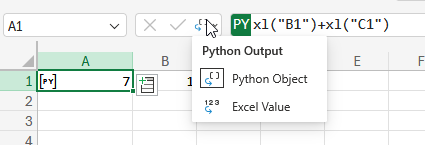
Figure 4:Two types of output of a Python cell.
Card icon
Provides information about data.
Calculation order
Python cells can be everywhere in the worksheet. The Python cells in first rows are processed first and inside a row, first columns are processed first[11].
Recalculation
If a cell is changed that a Python cell depends on, so are Python cells recalculated. If it takes too long, this behavior can be changed to manual or partial.
Errors
#PYTHON!Hover on the green triangle on the top left corner to see the error
#BUSY!#CONNECT!
DataFrame
a fundamental datatype for two-dimensional data
part of pandas library
similar to an Excel table
Can be converted to Excel values using output type.
Import data
Two sources
Internal: Worksheet
External: Power Query
pandas.read_csvetc aren’t compatible
External data
Using Data->Get Data->OData then the following example dataset
https://services.odata.org/northwind/northwind.svc/Working with data
df = xl("Alphabetical_list_of_products[#All]", headers=True)
dfRow with the lowest units in stock:
df.loc[df["UnitsInStock"].idxmin()]Plotting:
plt.scatter(df["ProductID"], df["UnitsInStock"])My experience with Python in Excel
In conclusion, I did not like that there is no possibility to run Python cells locally. I had many synchronization issues with the cloud. For example
due to intermittent problems in synchronization, my small edits on the scripts would not be visible
sometimes it took a long time for a cell to show results
there is no code completion for dataframe fields
Python code editor on the cloud gave the error:
Failed to load.

The argument is invalid or missing or has an incorrect format.
So I could not use the editor.
I would probably rather work on an editor first and then try to integrate my analysis into the Excel sheet if required. Therefore it is still important to know that Python is available in Excel.
According to Stackoverflow technology data 2026 https://
survey .stackoverflow .co /2026 /technology /data /databases For simplicity, I used
autocommit, which executes the SQL prompt and saves the changes immediately on the database. In more complex projects, many SQL prompts are collected in a transaction and the changes are saved on the file in a batch. This is called commit. This can be achieved with:con.commit()Or with a context manager:
with con: con.executemany("INSERT INTO orders VALUES(?, ?)", data) # The context manager commits changes at the end of the context. (same as `con.commit()`) # If we don't commit, then the changes will not be stored in the database and therefore will # not be visible for other clients.Many tutorials use a cursor made from the connection object:
cur = con.cursor(), which I did not use explicitly for the first example. An implicit cursor is used incon.executein theforloop, for example.There is also a web version of the extension: https://
beta .sqliteviewer .app/. SQLite has also a native browser called sqlitebrowser, which is typically included in the installation package.SQLite uses flexible typing. So a
TEXTcan still end up in anINTEGERcolumn after anINSERT.Actually SQLite creates a hidden column called
RowID, but we should not use it. Excerpt from https://sqlite .org /rowidtable .html: If the rowid is not aliased by INTEGER PRIMARY KEY then it is not persistent and might change ...
According to PRIMARY KEY docs, due to a bug, a primary key is not always unique even expected by the SQL standard.
... when crafting SQL statements through an another source, e.g., Python.
For a discussion, refer to https://
stackoverflow .com /questions /26078535 /composite -primary -keys -good -or -bad Called row-major order. See row- and column-major order
If used like this:
df = xl("Alphabetical_list_of_products")Then the headers are not available.